SELECT + JOIN + GROUP BY — Building Your First Real Report
Build a top 10 customers report with SELECT, JOIN, GROUP BY, SUM, ORDER BY and LIMIT, and learn the two checks that show whether its numbers are right before anybody acts on them.
This article is part of the Learn SQL hands-on course series.
Prerequisite — this is a hands-on lesson. Reading it is not enough. Run every query yourself in CloudBeaver, against the Northwind sample database on PostgreSQL — and solve the koans yourself on DuckDB, the same Northwind data.
Not set up yet? It only takes a couple of minutes:
Who is our biggest customer?
Leo asked that question back in the filtering lesson, and the answer has been "be patient" ever since. Every lesson after it gave him one piece of the answer:
- Sorting could rank rows, but it could not add anything up.
- Adding up gave one number for the whole business, not one per customer.
- Grouping gave one number per customer, but the customers were codes, and the numbers were order counts and freight, not money spent.
Each piece was correct, and none of them answered the question on its own. The question needs more SQL than any one lesson could teach. This lesson puts the pieces together and answers it.
Why the answer had to wait
The answer needs four things, and each one had a lesson of its own:
| The answer needs | Because | Lesson |
|---|---|---|
JOIN | the customer's name and the money are in three different tables | Joins |
GROUP BY | the report needs one total for each customer, not one for the whole business | GROUP BY |
SUM | each customer's money is spread over many rows | Aggregate functions |
ORDER BY and LIMIT | the biggest spender goes first, and the list stops after the top few | ORDER BY and LIMIT |
None of them gets there alone. Leave out any one, and the result still looks finished, but it does not answer the question.
No new keywords today
This lesson teaches no new SQL. Every keyword it uses was taught in an earlier lesson.
What is new is putting them together in one query, which is a skill of its own, and one habit that has never had a lesson: checking the number before somebody else acts on it. That habit is the difference between someone who can write SQL and someone whose reports people trust.
Every query below runs on the Northwind database on PostgreSQL. Type each one into CloudBeaver and compare the result with the table under it. If that is not set up yet, the Learn Data guide gets it running.
The question before the query
Before writing anything, ask: one row of my answer represents what? Here, one row is one customer. That already decides what the query will GROUP BY.
Then ask the second half, which people often skip: one row of the thing I am adding up represents what? The thing being added up is money, and the money is not in "Customers". It is not in "Orders" either: an order records who placed it, not what was in it. The money is in "Order Details", which has one row for each product on each order. This page calls that row an order line.
The report needs three tables
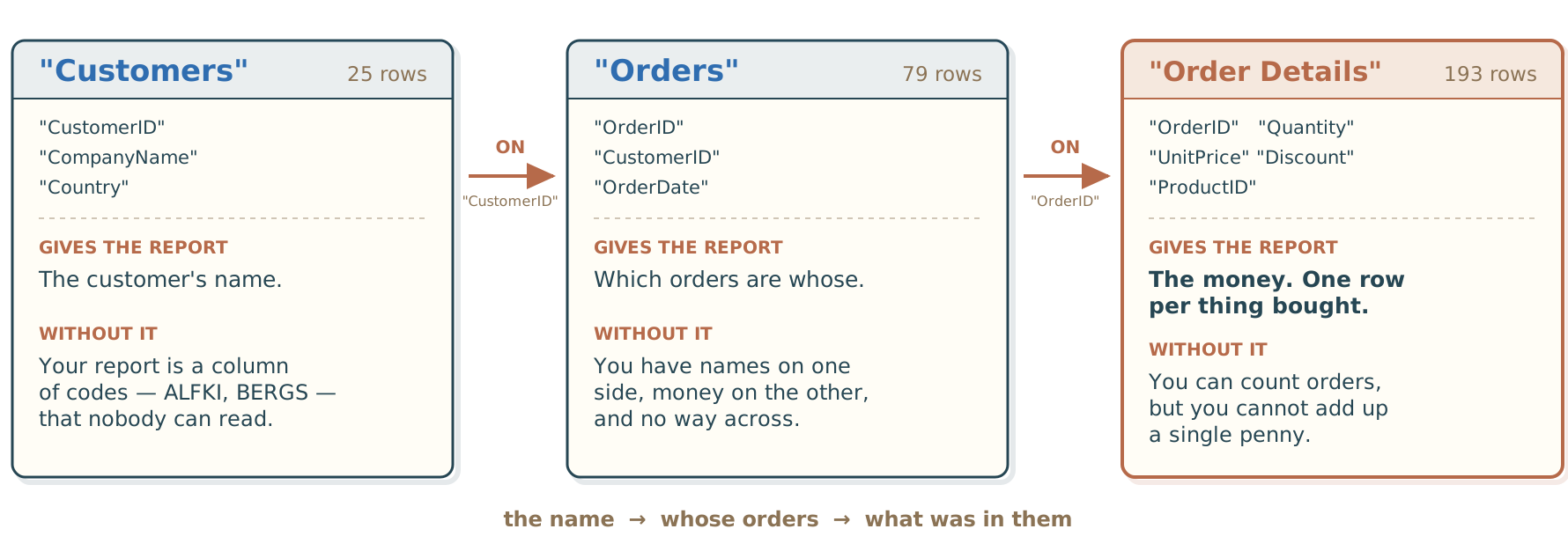
"Customers"gives the report the customer's name. Without it, the report shows customer codes instead of names."Orders"says which orders belong to which customer, through"CustomerID". Without it, the names are in one table and the money is in another, with nothing that connects them."Order Details"holds the money, one row per order line, linked to its order through"OrderID". Without it, orders can be counted, but no money can be added up.
The report needs all three.
Count first
Before building the report, find out how many orders there are:
SELECT count(*) AS "Orders"
FROM "Orders";| Orders |
|---|
| 79 |
79 orders. Write that number down.
Nothing has gone wrong yet, and that is exactly the time to count. The next steps will change the number of rows, and the change is only noticeable if the starting number is known. It is the dullest query in the lesson, and it is the one that gives the warning later, when a join changes the number of rows.
One join: still 79 rows
Now join each customer to their orders, and count again:
SELECT count(*) AS "Rows"
FROM "Customers" c
JOIN "Orders" o
ON o."CustomerID" = c."CustomerID";| Rows |
|---|
| 79 |
The query starts FROM "Customers", and there are only 25 customers. So why did 79 rows come back, and not 25?
Because an INNER JOIN does not place one table next to the other. It matches rows. It returns one row for every pair of rows that match on the ON condition, and it leaves out any row that matches nothing.
Every order was placed by exactly one customer, so each of the 79 orders finds exactly one match. That makes 79 rows. A customer can have many orders, but an order has only one customer, so the orders decide the count, not the customers: 25 customer names, spread over 79 orders.
One row of this result is still one order. The join added the customer's details to each order, and it did not add any rows.
Two joins: 193 rows
Add a second join, to "Order Details", to reach what each order contains. It is the same keyword and the same shape as the first join. Count again:
SELECT count(*) AS "Rows"
FROM "Customers" c
JOIN "Orders" o
  ON o."CustomerID" = c."CustomerID"
JOIN "Order Details" d
ON d."OrderID" = o."OrderID";| Rows |
|---|
| 193 |
79 rows went in and 193 came out, more than double. Only a join was added, and nothing asked for extra rows. So did something break?
No. It is the same rule as before: one row for every match. This time the matches are order lines. An order can contain several products, and each product on an order is its own row in "Order Details". So now the order lines decide the count, not the orders.
Nothing is broken. The query went where the money is, and the money is recorded one level below the order. But the change in the count says something important: one row of the result is no longer one order. One row is now one order line. What one row represents is called the grain of the result, and the second join changed it.
From here on, count(*) counts order lines, not orders. Nothing in the database says so. The only warning is the number written down at the start.
When the row count moves, the grain moved with it. Every total built on top of the result now means something different from what it meant before the join.
What one line is worth
The value of one order line is its price, times the quantity, minus the discount:
d."UnitPrice" * d."Quantity" * (1 - d."Discount")
"Discount" is stored as a fraction: 0.05 means 5% off, so 1 - d."Discount" is the part of the price the customer actually paid.
SUM adds up the line values for each customer. ROUND(..., 2) goes around the whole calculation, so it rounds the final total, which is the number that needs rounding.
Notice the d. in front of "UnitPrice". The "Products" table also has a "UnitPrice" column, but that one is the price we charge today. d."UnitPrice" comes from "Order Details" and is the price the line actually sold for. A sales report needs the price it sold for.
SELECT c."CompanyName",
       ROUND(SUM(d."UnitPrice" * d."Quantity"
         * (1 - d."Discount")), 2) AS "Total sales"
FROM "Customers" c
JOIN "Orders" o
  ON o."CustomerID" = c."CustomerID"
JOIN "Order Details" d
  ON d."OrderID" = o."OrderID"
GROUP BY c."CompanyName"
ORDER BY "Total sales" DESC;| CompanyName | Total sales |
|---|---|
| Cactus Comidas para llevar | 4567.8 |
| Blauer See Delikatessen | 4318.8 |
| Frankenversand | 4267.27 |
| Lehmanns Marktstand | 4077.12 |
| Ernst Handel | 3902.78 |
| Alfreds Futterkiste | 3838.43 |
| … | … |
25 rows come back, one per customer, with the biggest spender at the top: Cactus Comidas para llevar, 4567.8. The joins produced 193 order lines, and GROUP BY put them back together into one row for each customer. That is already a report that could be sent to somebody.
Add the order count
A sales report is more useful with the number of orders next to the money. So add count(o."OrderID") to the SELECT list. There is nothing careless about this. It is what almost anyone would write:
SELECT c."CompanyName",
       count(o."OrderID") AS "Orders",
       ROUND(SUM(d."UnitPrice" * d."Quantity"
         * (1 - d."Discount")), 2) AS "Total sales"
FROM "Customers" c
JOIN "Orders" o
  ON o."CustomerID" = c."CustomerID"
JOIN "Order Details" d
  ON d."OrderID" = o."OrderID"
GROUP BY c."CompanyName"
ORDER BY "Total sales" DESC;| CompanyName | Orders | Total sales |
|---|---|---|
| Cactus Comidas para llevar | 8 | 4567.8 |
| Blauer See Delikatessen | 8 | 4318.8 |
| Frankenversand | 7 | 4267.27 |
| Lehmanns Marktstand | 8 | 4077.12 |
| Ernst Handel | 7 | 3902.78 |
| Alfreds Futterkiste | 11 | 3838.43 |
| … | … | … |
Read the sixth row: Alfreds Futterkiste, 11 orders. Alfreds placed 5.
The money is still right. 3838.43 is exactly what the previous query returned for Alfreds. One column is wrong, and the columns on either side of it are correct.
Why count returned 11
The number is wrong, and nothing failed: no error, no warning, nothing that looks odd. That is exactly why this mistake is easy to miss.
count counts rows, and since the second join, every row is an order line. Alfreds' 5 orders contain 11 order lines between them, so count returned 11. The query did exactly what it was asked. And it is not only Alfreds: every number in that column is a count of order lines, not of orders. And that count was added after the row count had already shown that the grain had changed.
What makes this easy to miss is that the query does name a column. count(o."OrderID") reads as if it counts orders. But count of a column counts how many values are in that column, not how many different values. After both joins, Alfreds' "OrderID" column holds these 11 values:
1 1 4 4 8 8 33 33 33 58 58
That is 11 values, but only 5 different order numbers. count returned 11, because nothing asked it for the different ones.
Naming a column like
count(o."OrderID")does not change whatcountcounts.
The fix is one word
Ask count for the different values, with DISTINCT:
SELECT c."CompanyName",
       count(DISTINCT o."OrderID") AS "Orders",
       ROUND(SUM(d."UnitPrice" * d."Quantity"
         * (1 - d."Discount")), 2) AS "Total sales"
FROM "Customers" c
JOIN "Orders" o
  ON o."CustomerID" = c."CustomerID"
JOIN "Order Details" d
  ON d."OrderID" = o."OrderID"
GROUP BY c."CompanyName"
ORDER BY "Total sales" DESC;| CompanyName | Orders | Total sales |
|---|---|---|
| Cactus Comidas para llevar | 3 | 4567.8 |
| Blauer See Delikatessen | 3 | 4318.8 |
| Frankenversand | 3 | 4267.27 |
| Lehmanns Marktstand | 3 | 4077.12 |
| Ernst Handel | 3 | 3902.78 |
| Alfreds Futterkiste | 5 | 3838.43 |
| … | … | … |
count(DISTINCT o."OrderID") counts how many different order numbers are in each customer's rows, not how many rows there are. Alfreds' 11 order lines carry 5 different order numbers, so the result is 5. One word, in one place, and nothing else in the query changed.
Now look at what did not change: every figure in the money column is exactly where it was. "Order Details" set the grain, one row per order line, and the money is recorded on that same line. Each line appears exactly once in the joined rows, so adding up the money was correct from the start. Only the count broke, because an order with several lines appears on several rows, and its order number appears once on each of them.
The ranking did not change either: the same customers, in the same order, from top to bottom. Only the middle column is different. If the first version had gone out, nobody reading it would have noticed.
Check the money a second way
One number is left to double-check, and it is the most important one: the money.
The row count showed that the grain changed. It did not show whether the money changed with it. So calculate the total twice, by two routes that do not look alike, and see whether they agree.
The first route goes through all three tables, the way the report does:
SELECT ROUND(SUM(d."UnitPrice" * d."Quantity"
         * (1 - d."Discount")), 2) AS "Total"
FROM "Customers" c
JOIN "Orders" o
  ON o."CustomerID" = c."CustomerID"
JOIN "Order Details" d
ON d."OrderID" = o."OrderID";| Total |
|---|
| 58153.31 |
The second route reads "Order Details" and nothing else, with no join at all:
SELECT ROUND(SUM("UnitPrice" * "Quantity"
         * (1 - "Discount")), 2) AS "Total"
FROM "Order Details";| Total |
|---|
| 58153.31 |
The same number, and the second route shares no join with the first.
Because both routes agree, they prove something that reading the query could not: the joins multiplied the rows, repeating each "OrderID" once for every order line, but left the money alone. Every order line was still counted exactly once.
Two checks, every time
- Count the rows before a join and after it. If the count moves, the grain moved.
- Get the total in a second way that does not look like the first one.
A join can change two different things: how many rows there are, and what those rows add up to. The two checks show which one happened.
What the checks cannot prove
Be careful here, because this is where people trust their own work too much.
Both routes were written by the same person, with the same idea of what revenue means. So they prove the plumbing: the joins did not duplicate the money, and the grouping did not lose any. They cannot prove that the number means what was asked for. If revenue were defined wrongly, for example by leaving out the discount, both routes would make the same mistake and still agree perfectly.
To check what a number means, compare it with a number from somewhere else: last quarter's figure, the total on an invoice, or the figure from the finance team.
What the total doesn't show
The report can show one more thing, and this one is not a check. Divide each customer's money by their number of orders to get the average order value:
SELECT c."CompanyName",
       count(DISTINCT o."OrderID") AS "Orders",
       ROUND(SUM(d."UnitPrice" * d."Quantity"
         * (1 - d."Discount")), 2) AS "Total sales",
       ROUND(SUM(d."UnitPrice" * d."Quantity"
         * (1 - d."Discount"))
         / count(DISTINCT o."OrderID"), 2) AS "Avg order"
FROM "Customers" c
JOIN "Orders" o
  ON o."CustomerID" = c."CustomerID"
JOIN "Order Details" d
  ON d."OrderID" = o."OrderID"
GROUP BY c."CompanyName"
ORDER BY "Total sales" DESC;| CompanyName | Orders | Total sales | Avg order |
|---|---|---|---|
| Cactus Comidas para llevar | 3 | 4567.8 | 1522.6 |
| Blauer See Delikatessen | 3 | 4318.8 | 1439.6 |
| Frankenversand | 3 | 4267.27 | 1422.42 |
| Lehmanns Marktstand | 3 | 4077.12 | 1359.04 |
| Ernst Handel | 3 | 3902.78 | 1300.93 |
| Alfreds Futterkiste | 5 | 3838.43 | 767.69 |
| … | … | … | … |
Now Cactus Comidas para llevar and Alfreds Futterkiste stop looking alike. Cactus spends 1522.6 per order, over 3 orders. Alfreds spends 767.69 per order, over 5 orders. Cactus buys less often, and each order is about twice as big. The two totals side by side, 4567.8 and 3838.43, never showed that.
The average divides by the order count, so it depends on that count being right. Go back to the wrong count from earlier, where Alfreds had 11 orders instead of 5. The same 3838.43 divided by 11 gives an average of 348.95 instead of 767.69, which is less than half. And the average is the number people make decisions on. Nobody argues about a total, but people act on an average. That is why counting 11 orders instead of 5 was worth catching.
The whole query
Here is the whole report query, with the last line it needed:
SELECT c."CompanyName",
       count(DISTINCT o."OrderID") AS "Orders",
       ROUND(SUM(d."UnitPrice" * d."Quantity"
         * (1 - d."Discount")), 2) AS "Total sales"
FROM "Customers" c
JOIN "Orders" o
  ON o."CustomerID" = c."CustomerID"
JOIN "Order Details" d
  ON d."OrderID" = o."OrderID"
GROUP BY c."CompanyName"
ORDER BY "Total sales" DESC LIMIT 10;Six clauses, counting both joins, and every one of them was taught in an earlier lesson:
| Clause | What it does here | Lesson |
|---|---|---|
SELECT | the customer name, plus two calculations: the order count and the money | Aliases, expressions and DISTINCT and Aggregate functions |
JOIN twice | follows two links: customer to orders, then order to order lines | Joins |
GROUP BY | returns one row per customer | GROUP BY |
ORDER BY … LIMIT 10 | puts the biggest spender first and keeps the top ten | ORDER BY and LIMIT |
The last line comes from the sorting lesson, back when there was nothing worth ranking. Now there is.
| CompanyName | Orders | Total sales |
|---|---|---|
| Cactus Comidas para llevar | 3 | 4567.8 |
| Blauer See Delikatessen | 3 | 4318.8 |
| Frankenversand | 3 | 4267.27 |
| Lehmanns Marktstand | 3 | 4077.12 |
| Ernst Handel | 3 | 3902.78 |
| Alfreds Futterkiste | 5 | 3838.43 |
| Morgenstern Gesundkost | 3 | 3289.13 |
| Around the Horn | 4 | 2701.58 |
| Great Lakes Food Market | 3 | 2683.28 |
| LILA-Supermercado | 3 | 2127.61 |
That is the top 10 customers, ranked by what they actually spent, from three joined tables.
The answer to "who is our biggest customer?" is simply the top row: Cactus Comidas para llevar. Looking up one name would have given that answer once. The report gives the whole ranking, and a fresh answer every time it runs.
Check on everything, send the top ten
LIMIT 10 dropped 15 customers. The checks covered all 25, but the report that gets sent shows 10. Is that a problem?
No, as long as the right version is checked. Run the checks on the query without LIMIT, because a total can only be checked when every row it came from is visible. Then add LIMIT 10 to the version that gets sent. So there are two versions of the same query: check the longer one, and send the shorter one. The top 10 is for the reader, not for the checks.
Also know what the cut removed. These are rows 10 to 12 of the full result:
| CompanyName | Orders | Total sales |
|---|---|---|
| LILA-Supermercado | 3 | 2127.61 |
| Berglunds snabbköp | 5 | 1952.66 |
| Du monde entier | 3 | 1918.93 |
Berglunds snabbköp is 11th. They placed 5 orders, more than 9 of the 10 customers in the report, and spent 1952.66. Nothing is wrong with that row. It fell below the cut because the report ranks customers by money, not by number of orders. So say so in the title, for example "Top 10 customers by total sales", and know what row 11 is before somebody asks.
Generate an Excel report
Writing the top 10 query was the hard part, and the hard part was thinking it through in SQL, not typing it.
Now a manager asks who the best customers are. Sending her the SQL and asking her to run it will not work: she does not write SQL, so she would have to pass it to someone who does. She works in Excel, and what she wants is an Excel file with the report already in it.
A reporting tool turns the query into that file. This lesson uses DataPallas, which is already installed: it is where Northwind and CloudBeaver were started for this series. Other reporting tools work in much the same way. Each one needs its own connection to the database.
1. Connect DataPallas to the same database
Configuration → Data Sources → New Database Connection. Choose PostgreSQL, and point it at the same Northwind database used for every query in this series.
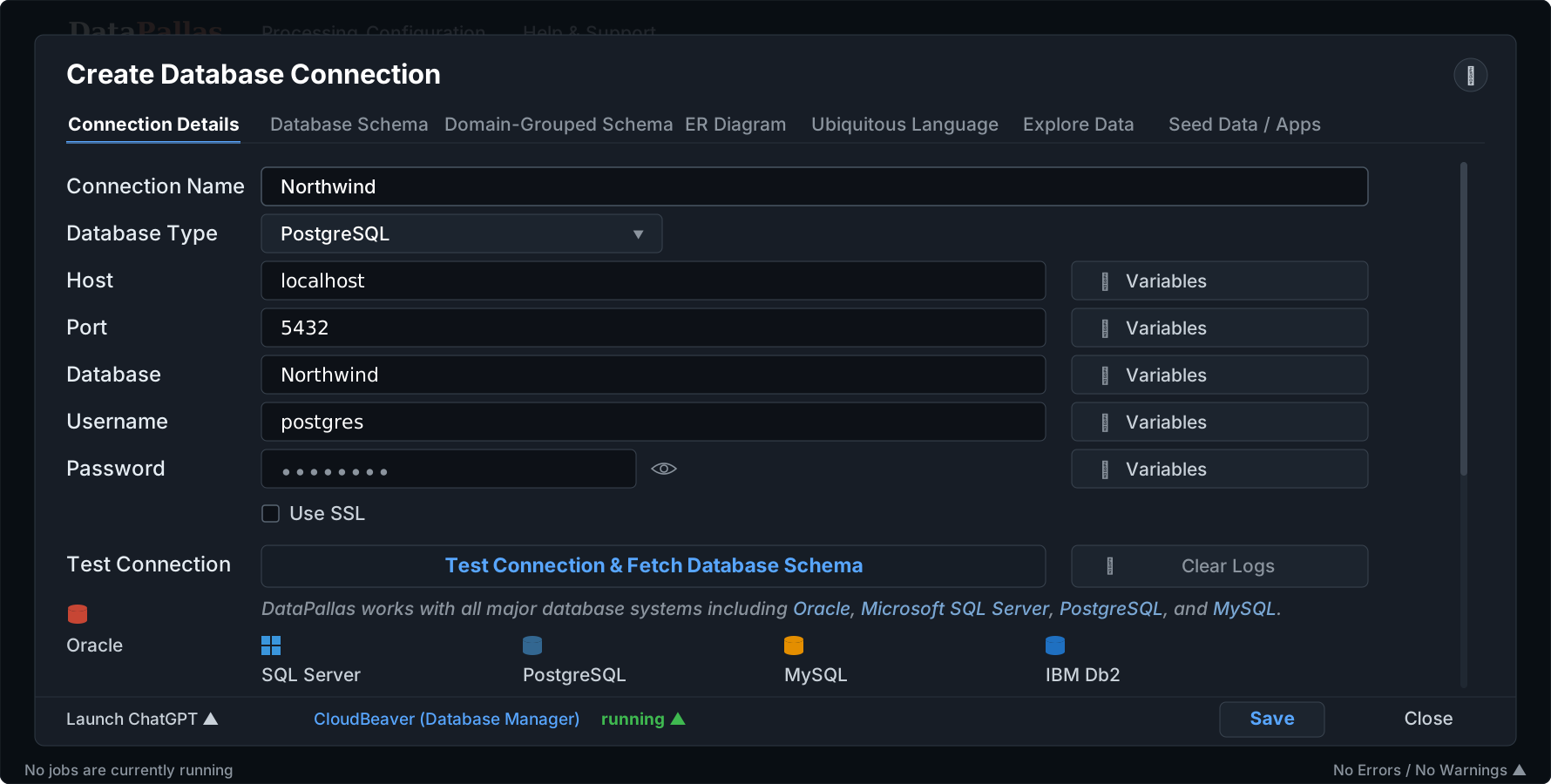
Use
localhostas the host. CloudBeaver runs inside Docker, so it reaches the database athost.docker.internal. DataPallas runs directly on the computer, so it reaches the same database atlocalhost. With the host copied from CloudBeaver, DataPallas cannot connect.
Click Test Connection before building anything on top of it. It shows whether the connection works before anything depends on it.
2. Paste the query as the data source
Configuration → Reports → Report Generation, then the DataSource tab. This tab says where the report's rows come from. Set the input type to SQL Query, choose the Northwind connection from step 1, and paste the query exactly as it is, including LIMIT 10.
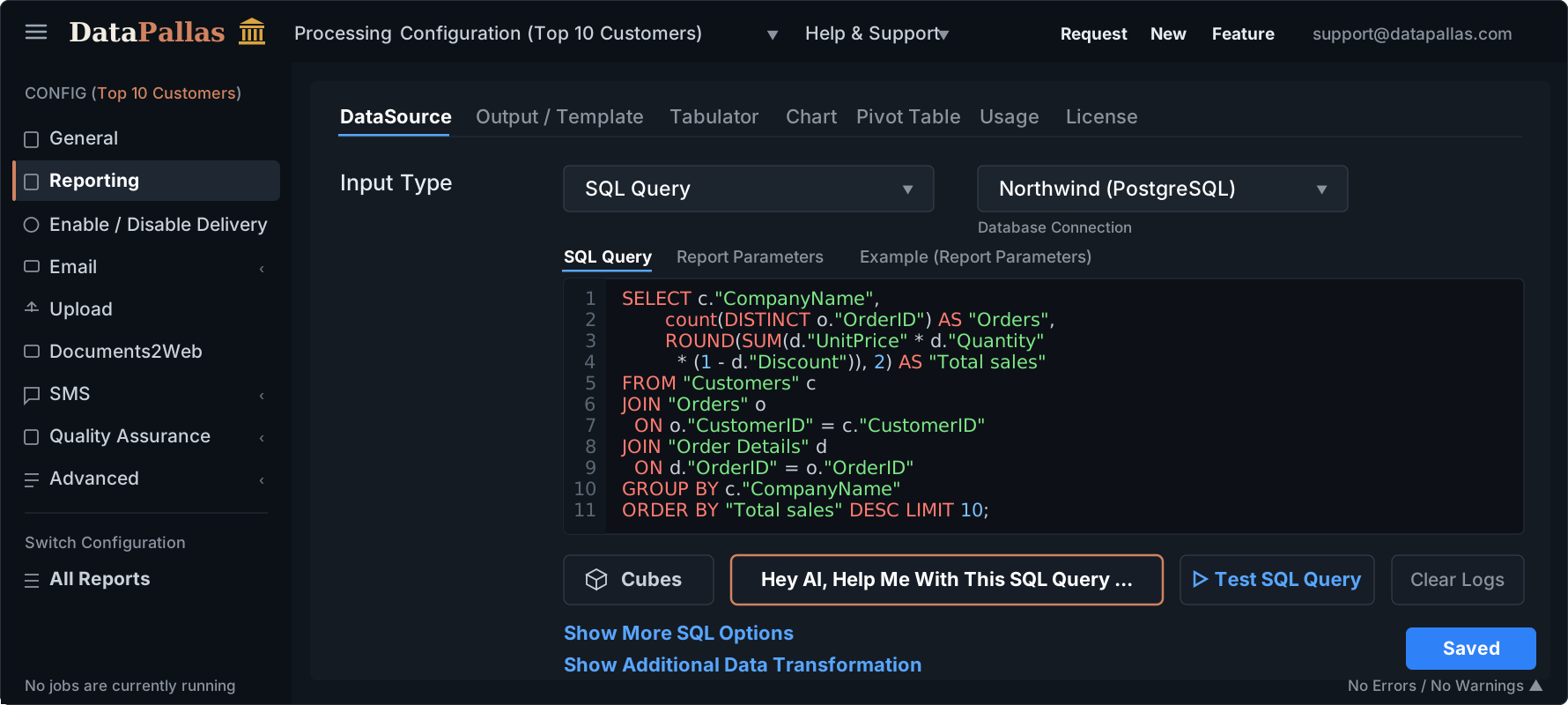
Under the editor there is a Hey AI, Help Me With This SQL Query button. For someone who does not know SQL, it is the faster way to get a query. But anyone can press it, and pressing it does not show whether the answer is right. An AI could make the same mistake as earlier on this page, 11 orders instead of 5, and give no warning. Someone who knows SQL knows what to ask for, and can tell when an answer is confidently wrong: run the two checks on it, the same as on any other query.
3. Describe the Excel layout
The Output / Template tab, with the output type set to Excel. The layout is an HTML template, but there is no HTML or CSS to write. Describe the layout in words, for example which headings, in which order, and a total under the money column. Then click Hey AI, Help Me Build This XLSX Template. The preview next to the template already shows the real data.
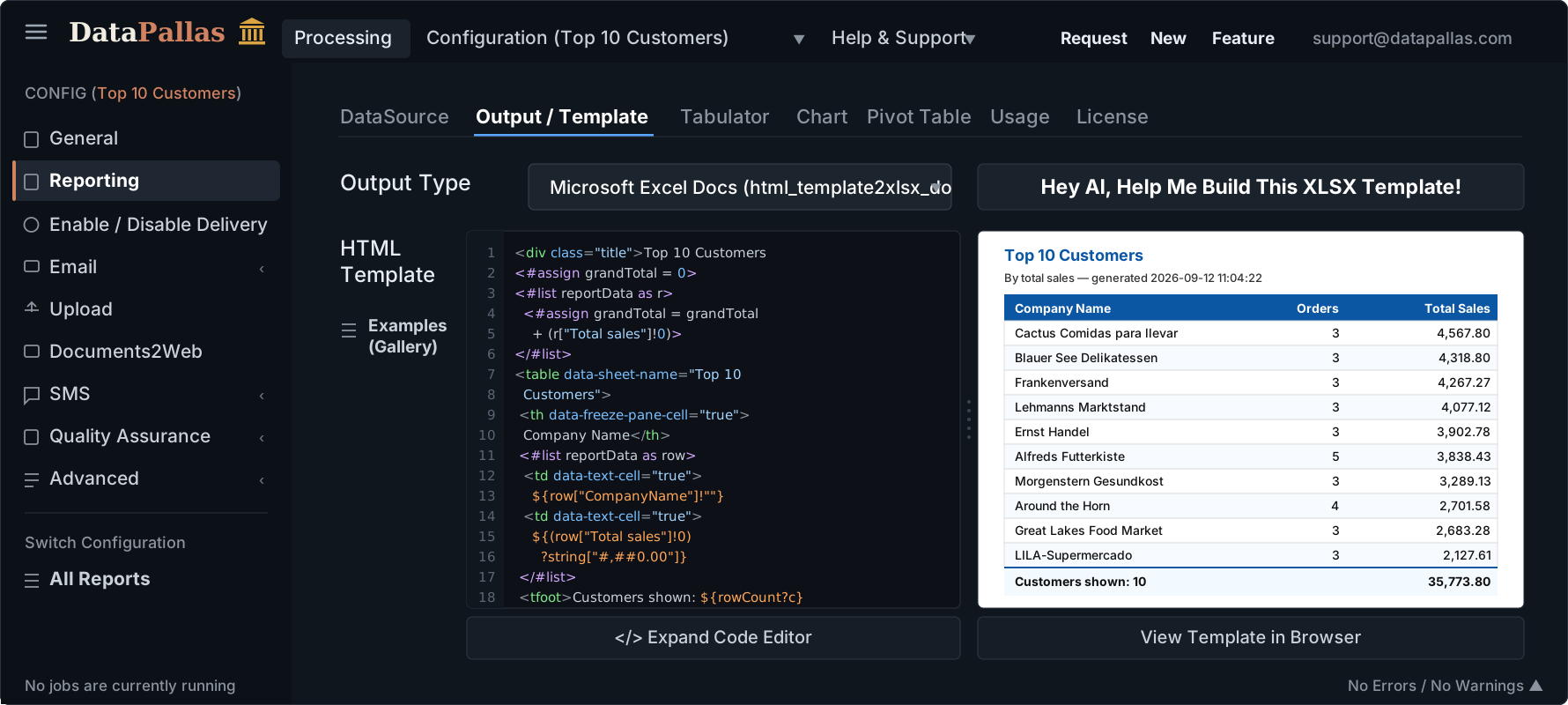
Or use this template, which produced the Excel file in the next step. Paste it into the template box and generate:
<!doctype html>
<html>
<head>
<meta charset="utf-8" />
<title>Top 10 Customers</title>
<style type="text/css">
body { font-family: Arial, Helvetica, sans-serif; font-size: 11px; color: #111111; }
.company { font-weight: bold; font-size: 15px; color: #0b57a4; }
.title { font-weight: bold; font-size: 14px; color: #111111; }
.meta { font-size: 10px; color: #333333; margin-bottom: 8px; }
table { border-collapse: collapse; width: 100%; }
thead th {
background-color: #0b57a4; color: #ffffff; font-weight: bold;
padding: 6px 8px; text-align: left; border: thin solid #cccccc;
}
tbody td { padding: 6px 8px; border: thin solid #e0e0e0; }
tfoot td {
padding: 8px; border-top: medium solid #0b57a4;
font-weight: bold; background-color: #f2f9ff;
}
.numeric { text-align: right; }
</style>
</head>
<body>
<div class="company">Northwind Traders</div>
<div class="title">Top 10 Customers</div>
<div class="meta">By total sales — generated ${now?string("yyyy-MM-dd HH:mm:ss")}</div>
<#assign grandTotal = 0>
<#assign rowCount = 0>
<#if reportData??>
<#list reportData as r>
<#assign grandTotal = grandTotal + (r["Total sales"]!0)>
<#assign rowCount = rowCount + 1>
</#list>
</#if>
<table data-sheet-name="Top 10 Customers">
<thead>
<tr>
<th data-freeze-pane-cell="true">Company Name</th>
<th class="numeric">Orders</th>
<th class="numeric">Total Sales</th>
</tr>
</thead>
<tbody>
<#if reportData?? && reportData?size gt 0>
<#list reportData as row>
<tr>
<td data-text-cell="true">${row["CompanyName"]!""}</td>
<td class="numeric" data-text-cell="true">${(row["Orders"]!0)?string["#,##0"]}</td>
<td class="numeric" data-text-cell="true">${(row["Total sales"]!0)?string["#,##0.00"]}</td>
</tr>
</#list>
<#else>
<tr><td data-text-cell="true" colspan="3">No rows returned.</td></tr>
</#if>
</tbody>
<tfoot>
<tr>
<td>Customers shown: ${rowCount?c}</td>
<td class="numeric"></td>
<td class="numeric" data-text-cell="true">${grandTotal?string["#,##0.00"]}</td>
</tr>
</tfoot>
</table>
</body>
</html>If the template is edited later, two details matter. It reads each column by its name, as row["Total sales"], with quotes and square brackets because the name contains a space. And it formats the numbers itself, for example ?string["#,##0.00"] for the money, which gives a comma between thousands and two decimals. The cells are marked data-text-cell="true", so Excel shows each number exactly as written: 4,567.80.
4. Generate the Excel file
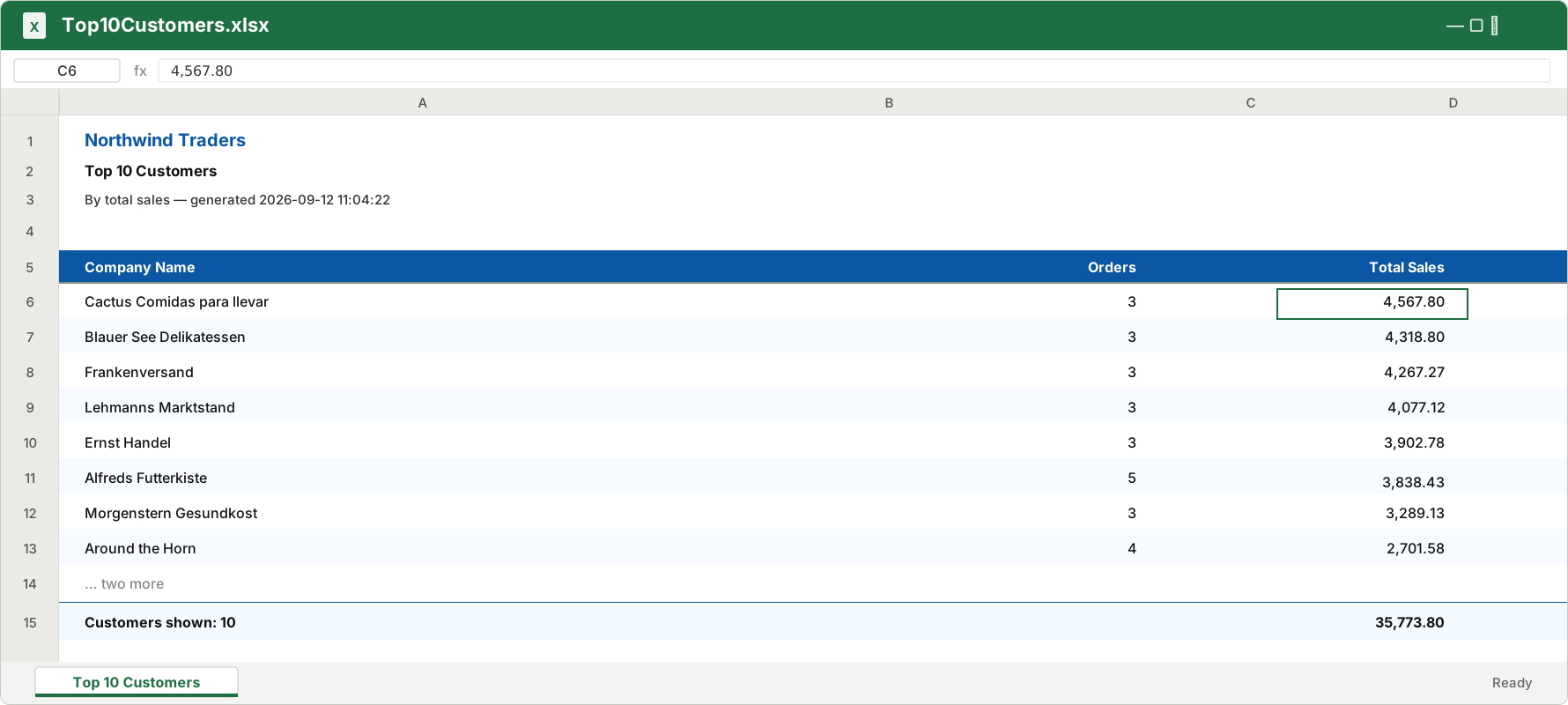
This is the report the manager asked for.
Notice who did what. DataPallas formatted the numbers. The query calculated them. A wrongly calculated number looks just as neat in Excel as a correct one, and nothing after the query can fix it. With the first version of the query, this file would say Alfreds Futterkiste placed 11 orders, every other order count would be wrong too, and nobody reading the file would know. That is why the numbers were checked first.
The footer total, 35,773.80, is the sum of the ten customers in the file. The 58153.31 from the checks is the total for all 25 customers.
Report Generation in DataPallas (read more)
Practice
There are ten koans for this lesson. They build the supplier side of the same business: instead of which customers spend the most with us, which suppliers' products earn us the most. They use different tables, "Suppliers", "Products" and "Order Details", so copying a query from this page will not answer them.
cd c:/DataPallas/db/datazeus
.\zeus.bat koans learnsql series1 _50On macOS or Linux, run ./zeus.sh koans learnsql series1 _50 from the same folder.
The file to edit is:
c:\DataPallas\db\datazeus\tests\src\koans\groovy\datazeus\learnsql\series1\_50\YourFirstRealReportKoans.groovyOpen it in any editor. Each koan has a ___ where the answer belongs. Replace one, save, run the command again, and watch that koan go green.
The koans follow the steps of this lesson: count the rows after one join and after two, add up the money for each supplier, count the different products instead of the rows, and check that count a second way without any join. Then divide the money by the right count to get an average, rank the products and keep the top six, and look at the product just below the cut. The last two koans give only the question, and the whole query has to be written from scratch.
What is next
This is the last of the twelve lessons in Series 1 — SQL Fundamentals. Together they took you from your first query through filtering, sorting, totals, grouping, joins and missing values, to the report you just built from three tables. We hope you learned a lot along the way.
Series 2, Intermediate SQL, starts where this lesson ends: joining more tables, and building queries out of other queries, with subqueries, CTEs and window functions.
Found this to be a little gem? Help others find it too — someone out there is stuck trying to learn SQL right now. The button opens Reddit with the link and title already filled in, so you just pick a community and post.
Share on Reddit