OAuth2 for Email Sending
Configure DataPallas to send email through Microsoft Office 365 (and other providers) using OAuth2 instead of Basic Authentication.
Table of Contents
- Why OAuth2
- Where OAuth2 is Available
- Microsoft Office 365 — Step by Step
- Other Providers
- Headless / Locked-down Installs
- Network & Permissions
- Troubleshooting
Why OAuth2
Microsoft is retiring SMTP AUTH Basic Authentication for Exchange Online. After the cut-off, mailboxes that still rely on a username + password against smtp.office365.com will be rejected with 535 5.7.3 Authentication unsuccessful. The same direction applies to Gmail, which already enforces OAuth2 for personal accounts.
OAuth2 replaces the stored password with a short-lived access token that DataPallas mints fresh from a long-lived refresh token every time it sends mail. The refresh token is stored encrypted on disk; the access token only lives in memory for the few seconds the SMTP transaction takes.
Where OAuth2 is Available
From the top menu open Reports, Connections & Cubes, then in the left sidebar click Connections and create (or edit) an email connection.
Microsoft Office 365 — Step by Step
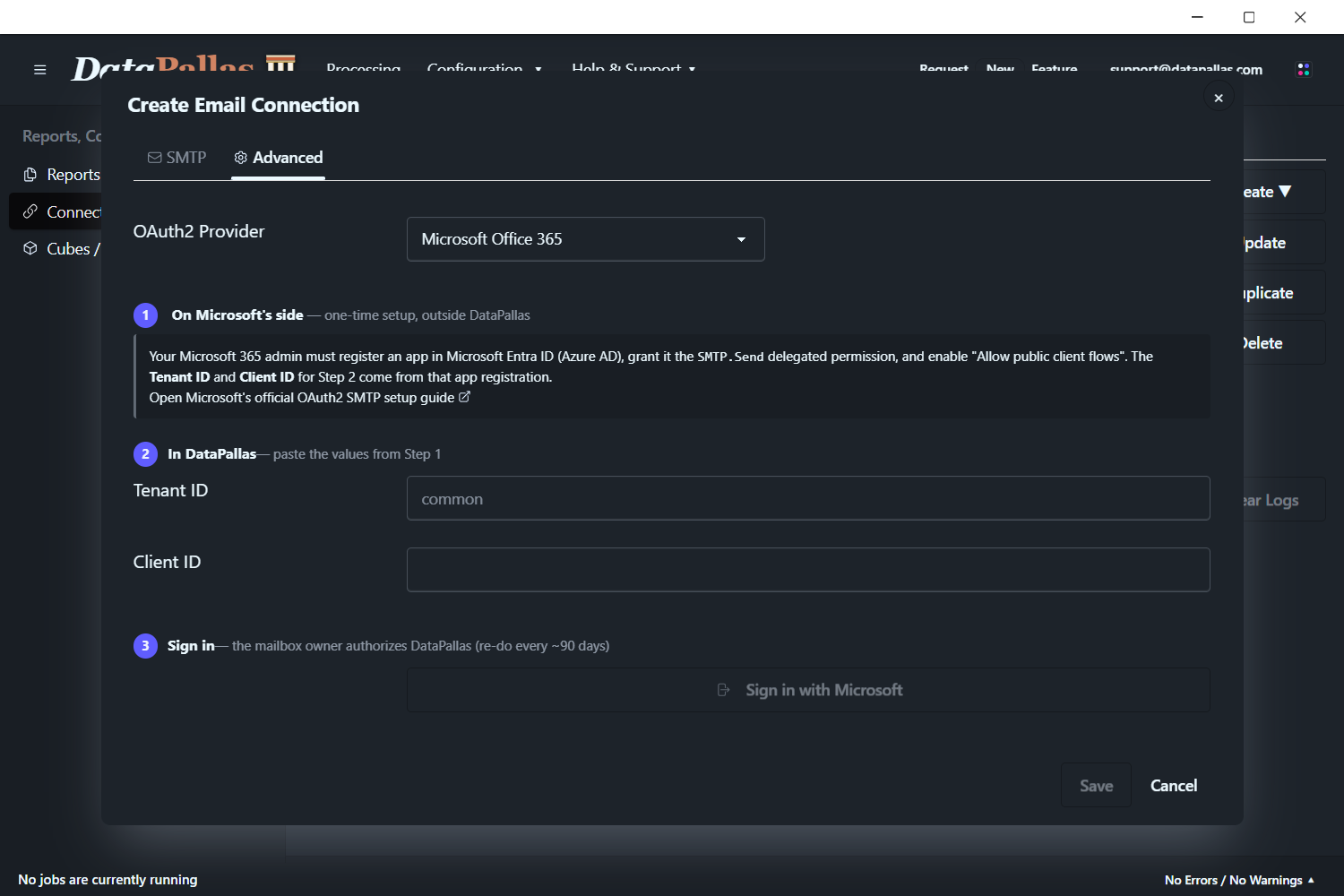
Step 1 — Register an Azure AD app
In the Azure portal under Microsoft Entra ID → App registrations → New registration:
- Name: anything you like (e.g.
DataPallas SMTP) - Supported account types: Accounts in this organizational directory only (single tenant)
- Redirect URI: leave empty here — DataPallas registers a one-shot loopback URI (
http://127.0.0.1:<random>/callback) at sign-in time - After creation, open Authentication and set Allow public client flows to Yes
- Open API permissions → Add a permission → Microsoft Graph → Delegated → SMTP.Send, then click Grant admin consent
From the app's Overview page, copy the Application (client) ID and the Directory (tenant) ID.
If your tenant administrator has disabled SMTP AUTH at the org or mailbox level, OAuth2 still won't work — that policy is independent of the auth mechanism. Re-enable SMTP AUTH for the sending mailbox before continuing.
Step 2 — Configure the email connection in DataPallas
Open the email connection's Advanced tab. Then:
- Fill the standard SMTP fields on the SMTP tab (
smtp.office365.com, port587, TLS on, your From Name and From Address). - On the Advanced tab, choose OAuth2 Provider → Microsoft.
- Paste the Tenant ID and Client ID copied from Azure.
- Click Sign in with Microsoft.
DataPallas opens your default browser at the Microsoft sign-in page. Sign in with the mailbox you want to send from, accept the consent prompt, and the browser tab closes itself. The refresh token is automatically saved (encrypted) into the connection — you'll see a green Connected as <your-mailbox> confirmation.
Step 3 — Test and save
Click Send Test Email to verify the full SMTP + XOAUTH2 round-trip against the real Microsoft endpoint. Then click Save to finalize the connection. The refresh token is persisted as <oauth2refreshtoken>ENC(...)</oauth2refreshtoken> in the connection XML — the plaintext is never written to disk and never returned to the browser.
From this point on, any report that uses this connection will send through OAuth2 with no further interaction. The refresh token typically lasts ~90 days of inactivity (Microsoft default; shorter under Conditional Access). If it expires, the next send fails with a clear invalid_grant error and you simply click Sign in with Microsoft again.
Other Providers
The same connection screen also supports:
- Google / Gmail — pick Google as provider, enter your Google Cloud OAuth client ID, and sign in. Useful for Workspace mailboxes and personal Gmail.
- Generic OAuth2 — for any provider that speaks standard OAuth2 + SMTP XOAUTH2 (e.g. Yahoo, custom identity providers). You supply the authorize URL, token URL, and scope manually.
The Microsoft path is the most polished today; the Google and Generic paths follow the same UX (provider dropdown → fields → Sign in button → green confirmation).
Headless / Locked-down Installs
The in-app Sign in button needs the host machine to (a) open a system browser and (b) bind a free loopback port. On servers without a desktop, or in environments where local antivirus blocks ad-hoc localhost listeners, run the same flow from the DataPallas CLI instead. It runs the identical PKCE flow as the in-app button and writes the result straight into the connection file:
datapallas.bat connection oauth-sign-in \
    --provider MICROSOFT \
    --tenant-id <your-tenant-id> \
    --client-id <your-client-id> \
--email-connection-file config/connections/eml-office365.xmlIf --email-connection-file is omitted, the CLI prints userEmail and refreshToken to stdout for manual paste into the connection XML.
For Generic OAuth2 providers, also pass --authorize-url, --token-url, and --scope.
Network & Permissions
Windows / local machine
| Item | Required? |
|---|---|
| Run DataPallas as Administrator | No |
Outbound HTTPS to login.microsoftonline.com:443 | Yes (rarely blocked) |
Outbound SMTP+TLS to smtp.office365.com:587 | Yes — often blocked by corporate egress. Verify with Test-NetConnection smtp.office365.com -Port 587 |
Azure AD (one-time, by tenant admin)
| Item | Who |
|---|---|
| Register the Azure AD app | Tenant admin (or any user, if your tenant allows users to register apps) |
Add SMTP.Send (Delegated, Microsoft Graph) | App owner |
Grant admin consent on SMTP.Send | Global Admin — without this, users hit AADSTS65001 at sign-in |
| Set "Allow public client flows" = Yes | App owner |
Exchange Online
| Item | Who |
|---|---|
| Tenant-level SMTP AUTH must be enabled | Exchange / Global Admin |
| Per-mailbox SMTP AUTH must be enabled for the sending mailbox | Exchange Admin |
In short: standard desktop install + tenant admin runs the Azure-side setup once + sending mailbox has SMTP AUTH enabled = users can self-serve OAuth2 sign-in.
Troubleshooting
| Symptom | Likely cause | Fix |
|---|---|---|
AADSTS70011 invalid scope | Wrong scope on the client app | Confirm SMTP.Send (delegated) is added and admin-consented in Azure |
AADSTS50173 expired refresh token | Token > 90 days idle, or Conditional Access revoked it | Open the connection, click Sign in with Microsoft again |
535 5.7.3 Authentication unsuccessful | Tenant-level SMTP AUTH disabled for the sending mailbox | Admin re-enables SMTP AUTH for that mailbox in Exchange Admin Center |
| Browser doesn't open / port bind fails | Headless server or AV blocks loopback | Use the CLI helper above |
invalid_grant immediately after sign-in | Clock skew or stale Azure consent | Re-grant admin consent on the API permissions page, then sign in again |